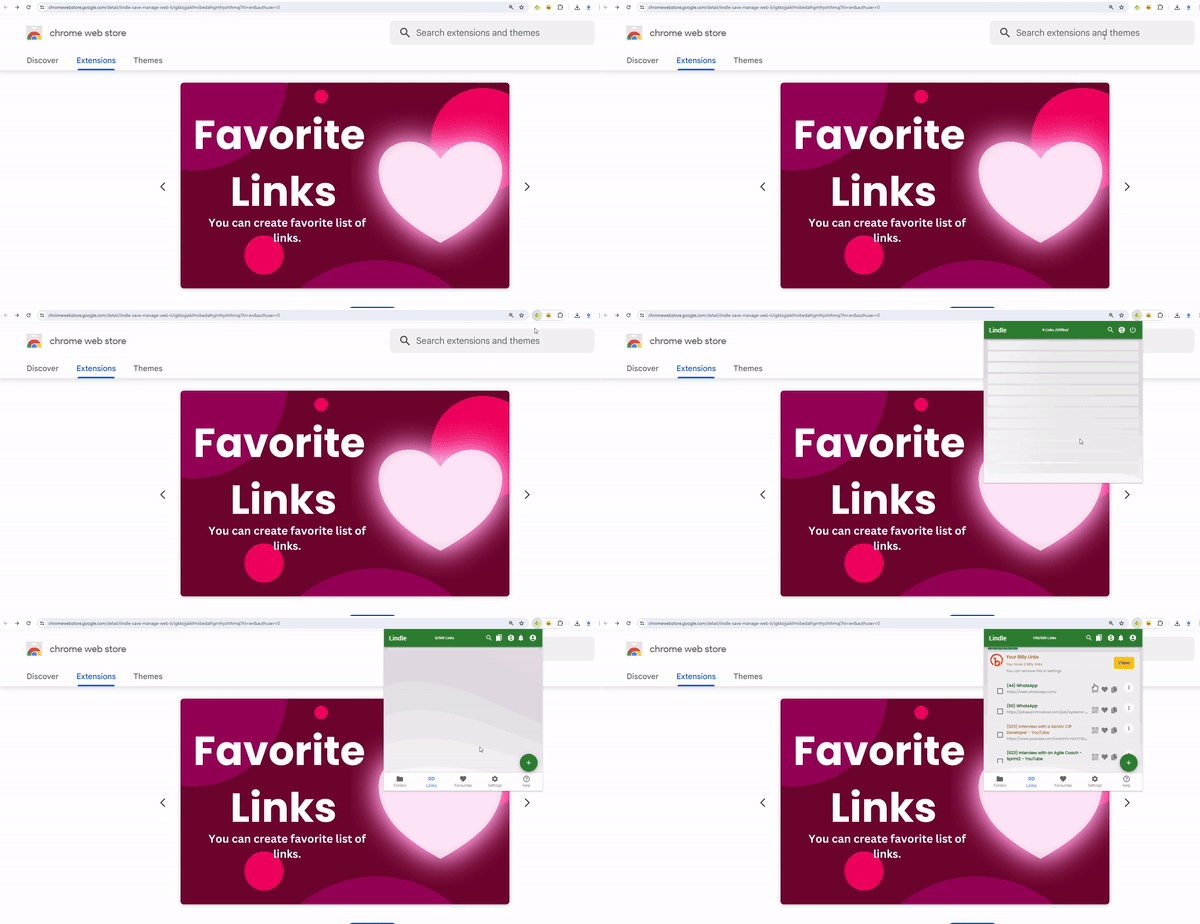
In the vast landscape of the internet, bookmarking plays a crucial role in organizing and accessing the wealth of information available online. Lindle Link, a cutting-edge application designed for seamless link management, empowers users to efficiently save and organize their favorite links with ease.
Whether you’re conducting research, compiling resources, or simply saving articles for later reading, Lindle Link offers a streamlined solution to bookmarking that enhances productivity and organization. In this comprehensive video guide, we’ll delve into the step-by-step process of saving your links using Lindle Link, ensuring you make the most of this powerful tool.
You can read our previous article on how to setup Lindle, here.
https://cdn.embedly.com/widgets/media.html?src=https%3A%2F%2Fwww.youtube.com%2Fembed%2F3RHBx77z-k0%3Fstart%3D3&display_name=YouTube&url=https%3A%2F%2Fwww.youtube.com%2Fwatch%3Fv%3D3RHBx77z-k0&image=http%3A%2F%2Fi.ytimg.com%2Fvi%2F3RHBx77z-k0%2Fhqdefault.jpg&key=a19fcc184b9711e1b4764040d3dc5c07&type=text%2Fhtml&schema=youtube

Step 1: Accessing Lindle Link
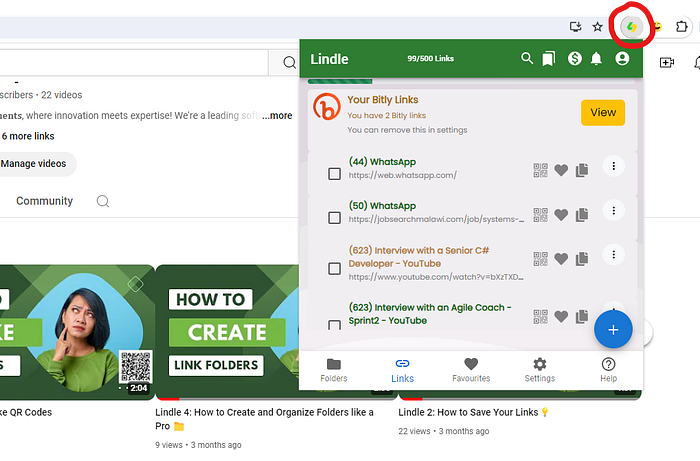
Once the Lindle extension is installed, the video will show how you can access it directly from your browser’s toolbar. Look for the Lindle yellow and green icon on the top right corner of your chrome page.
Step 2: Logging In
Upon opening Lindle, you’ll be prompted to log in with your Google account. This step is essential for syncing your saved links across multiple devices and accessing Lindle’s full range of features. If you don’t have a Google account, you can create one for free by clicking on the “Sign up” link.
Step 3: Saving a Link
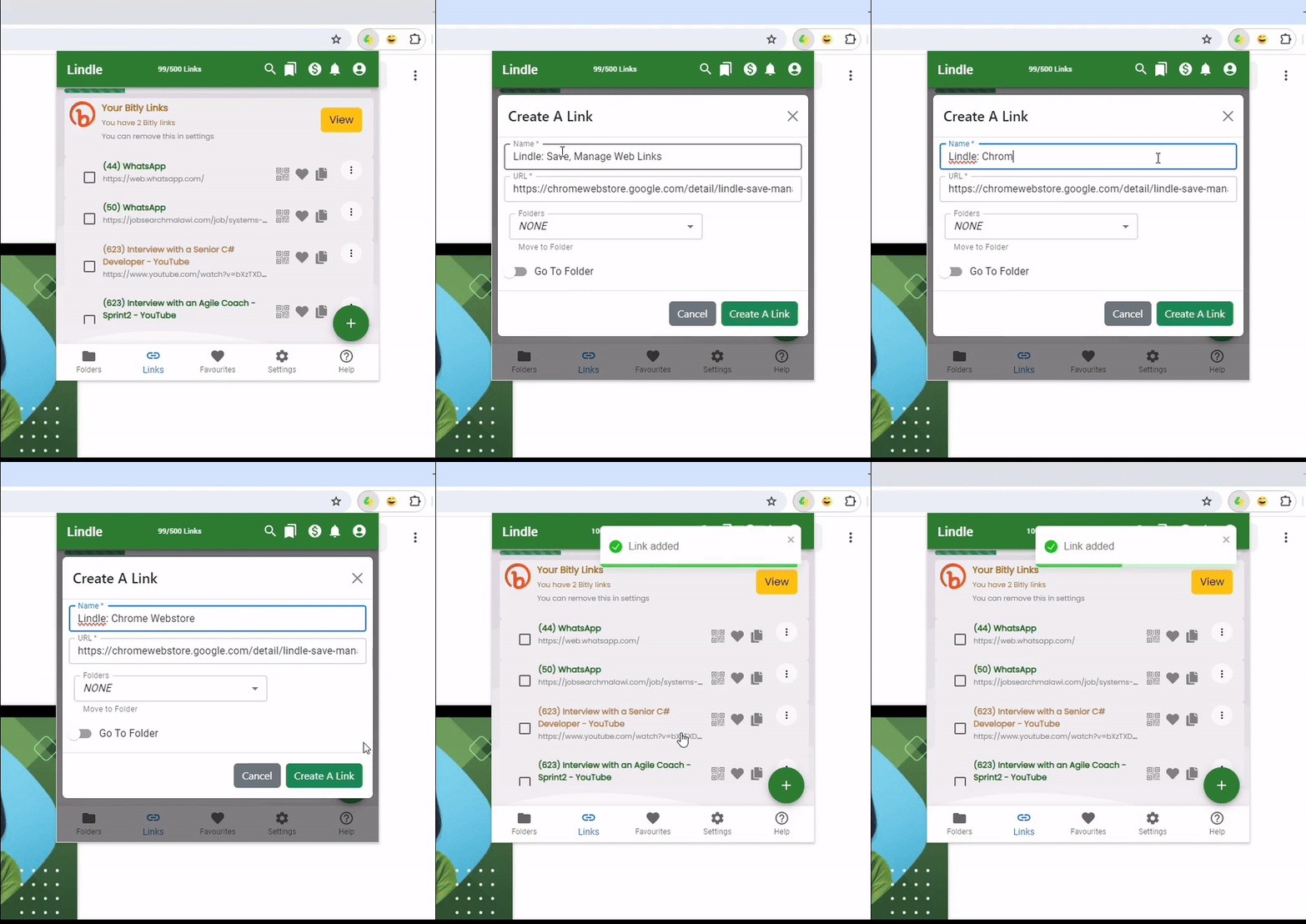
With Lindle open and logged in, you’re ready to start saving your links. To save a link, simply navigate to the webpage you wish to bookmark using your browser. Once you’re on the desired page, click on the Lindle Link icon in your browser’s toolbar to open the application.
Step 4: Adding Details
Upon opening Lindle Link, you’ll see an interface on the button right corner where you can add details to your saved link. This includes the title of the webpage, a brief description (optional), and tags to help categorize and organize your bookmarks. Take a moment to fill in these details to ensure your bookmarks are easy to find and navigate.
Step 5: Shortcuts to save your links
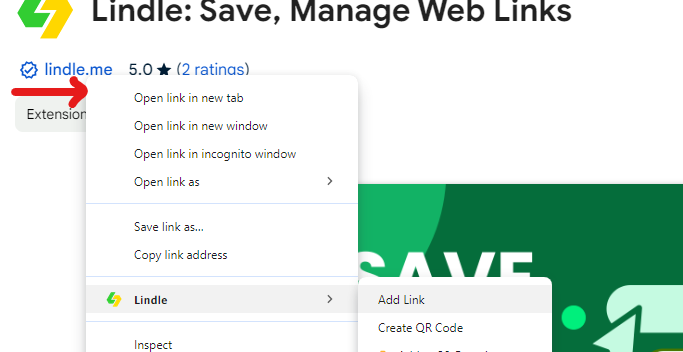
You can right click on any web link and save the link. Or if you want to be extra lazy you can just use the shortcut. ALT + L
Step 6: Create a favorite list
Managing your web links has never been easier, thanks to Lindle! Our app allows you to save and organize all your favorite links in one convenient place. Whether it’s an article you want to read later, a recipe you found intriguing, or a must-watch video, Lindle makes sure you never lose track of your go-to content.